
If you’re learning machine learning on AWS – or just want to understand how models work without writing code, this is one of the simplest workflows to try.
In this post, I’ll walk through how I built a loan approval prediction model using SageMaker Canvas, and where this kind of workflow shows up in AWS certifications like AWS Certified Machine Learning – Specialty.
- What This Covers
- The Problem
- Dataset Overview
- Step 1: Create the Dataset
- Step 2: Upload to Amazon S3
- Step 3: Open SageMaker Canvas
- Step 4: Import the Dataset
- Step 5: Build the Model
- Step 6: Model Results
- Step 7: Make Predictions
- Final Thoughts
What This Covers
- Building a machine learning model in SageMaker Canvas
- Understanding key metrics like accuracy, precision, and recall
- Seeing how AWS automates the ML pipeline end-to-end
The Problem
We want to predict:
Should a loan application be approved (1) or rejected (0)?
This is a classic binary classification problem — one of the most common patterns in machine learning.
Dataset Overview
We used 2,000 loan applications with 4 features:
| Column | Description |
|---|---|
| age | Applicant’s age |
| annual_income | Yearly income |
| debt | Existing debt |
| approved | Target (1 or 0) |
Example:
age,annual_income,debt,approved
25,30000,20000,0
45,80000,5000,1
Step 1: Create the Dataset
If you want to generate similar sample data, you can follow this guide:
👉 Loss Patterns in SageMaker: Overfitting vs Healthy Training Explained
Make sure your CSV includes headers:
age,annual_income,debt,approved
Save it as:
loan_canvas.csv
Step 2: Upload to Amazon S3
Upload your dataset to:
s3://my-sagemaker-bucket/loan-canvas/loan_canvas.csv
SageMaker Canvas reads data directly from S3, so this step is required before building a model.
Step 3: Open SageMaker Canvas
From the AWS Console:
- Go to SageMaker AI
- Click Canvas (Under Applications and IDE’s)
- Open Canvas button
Canvas is AWS’s no-code ML tool — everything is done through a visual interface.
Step 4: Import the Dataset
Inside Canvas:
- Go to Datasets
- Click Import data
- Select S3
- Choose your CSV file
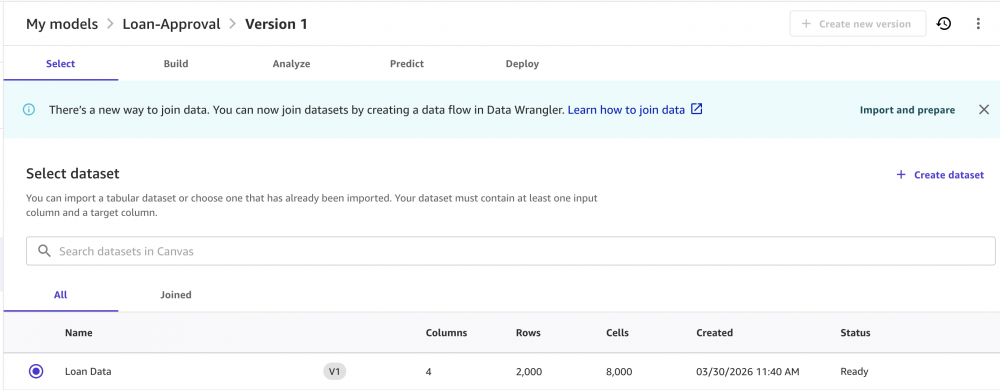
Canvas will automatically detect the columns and show a preview of your data.
Step 5: Build the Model
Steps:
- Go to My Models
- Click New model
- Name it
Loan-Approval(Predictive Analysis) - Select your dataset (Loan Data)
- Choose approved as the target column
- Select Quick build
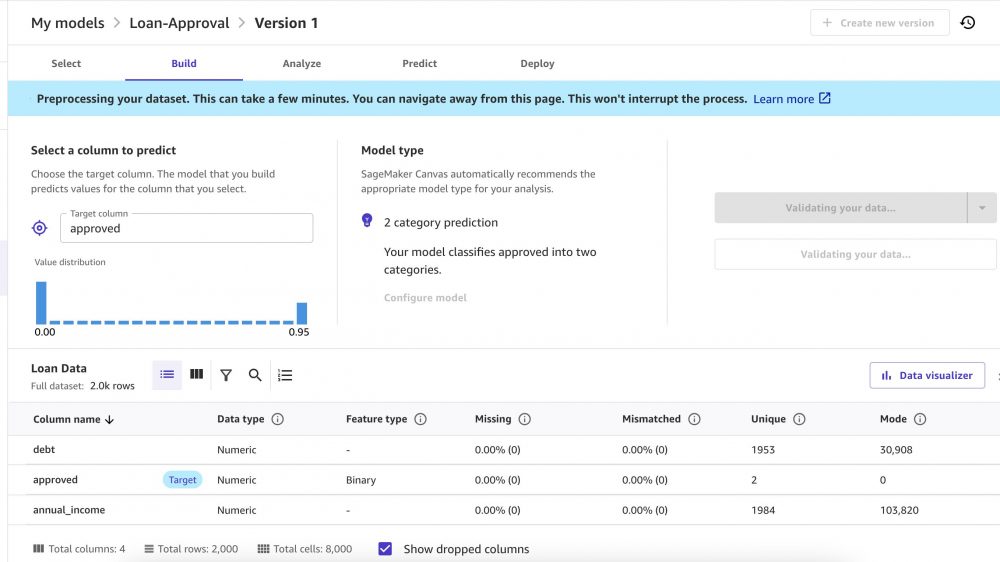
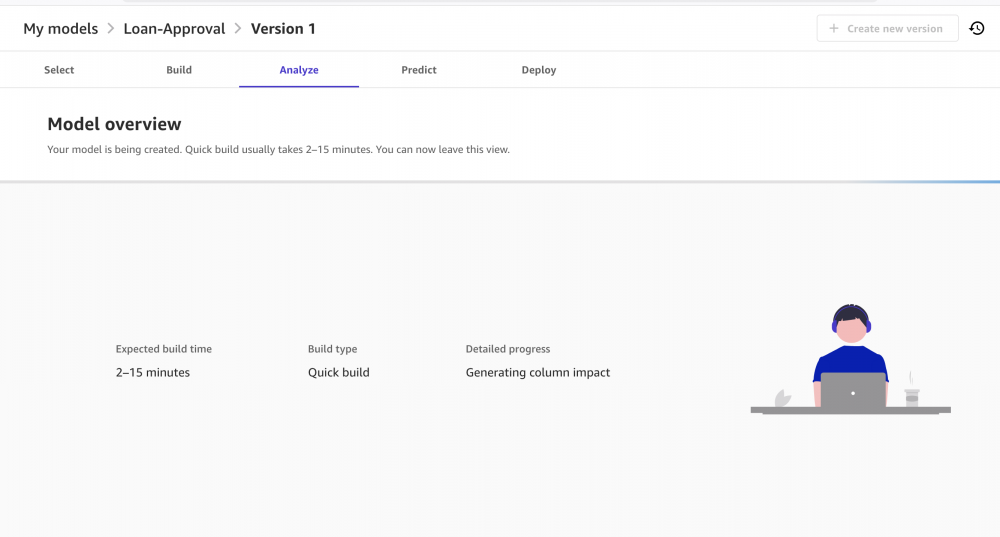
Behind the scenes, Canvas handles:
- Data splitting
- Algorithm selection
- Hyperparameter tuning
All with a single click.
Step 6: Model Results
After a few minutes, the model returns:
Accuracy:  92.768%
Precision: 86.207%
Recall:    93.284%
F1 Score:  89.606%
AUC:       0.98
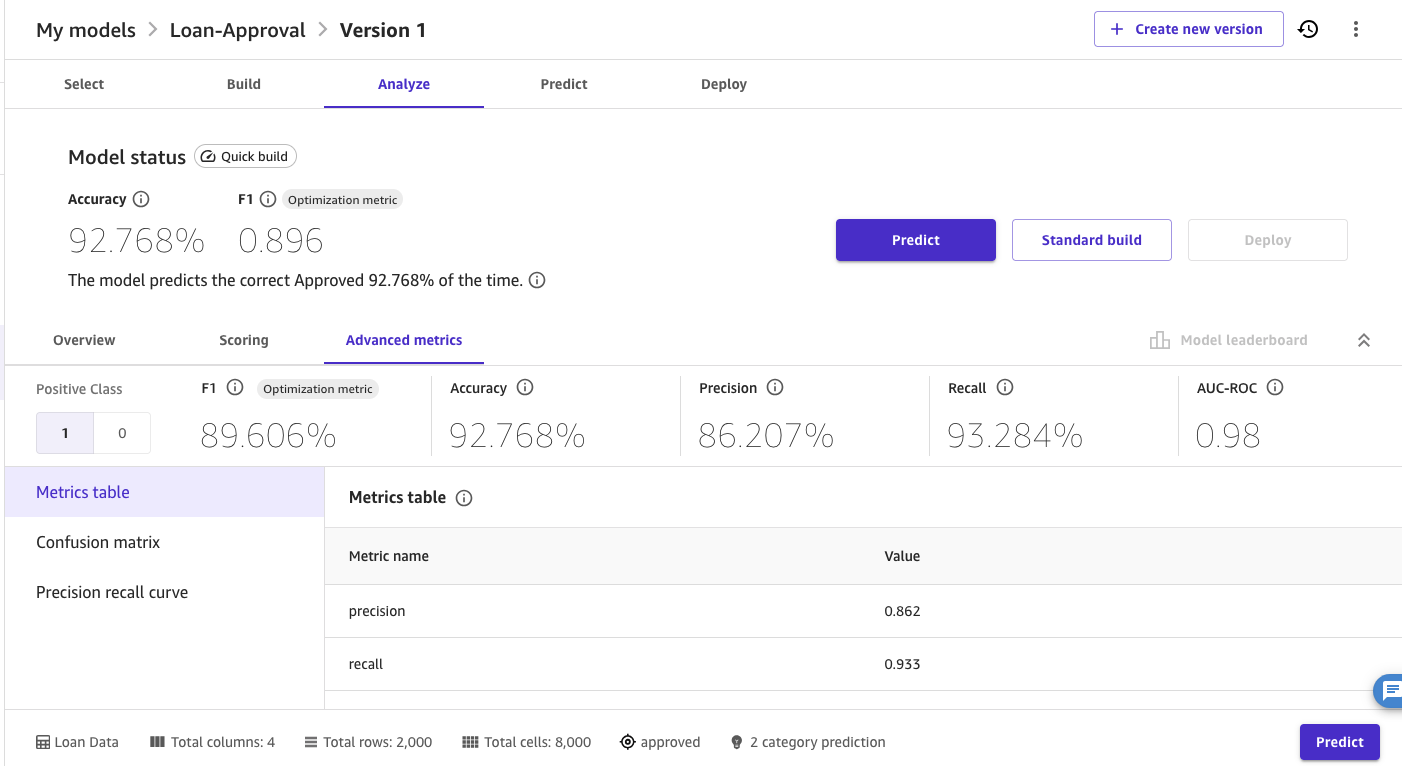
What These Metrics Mean
| Metric | Meaning |
|---|---|
| Accuracy | Overall correctness |
| Precision | How often approvals are correct |
| Recall | How many good applicants are captured |
| F1 Score | Balance between precision and recall |
| AUC | Overall model performance |
In this case:
- The model captures most good applicants (high recall)
- It occasionally approves risky ones (lower precision)
Confusion Matrix
                    Predicted
                  Approved  Rejected
Actual Approved  |  125 TP  |   9 FN  |
Actual Rejected  |   20 FP  | 247 TN  |
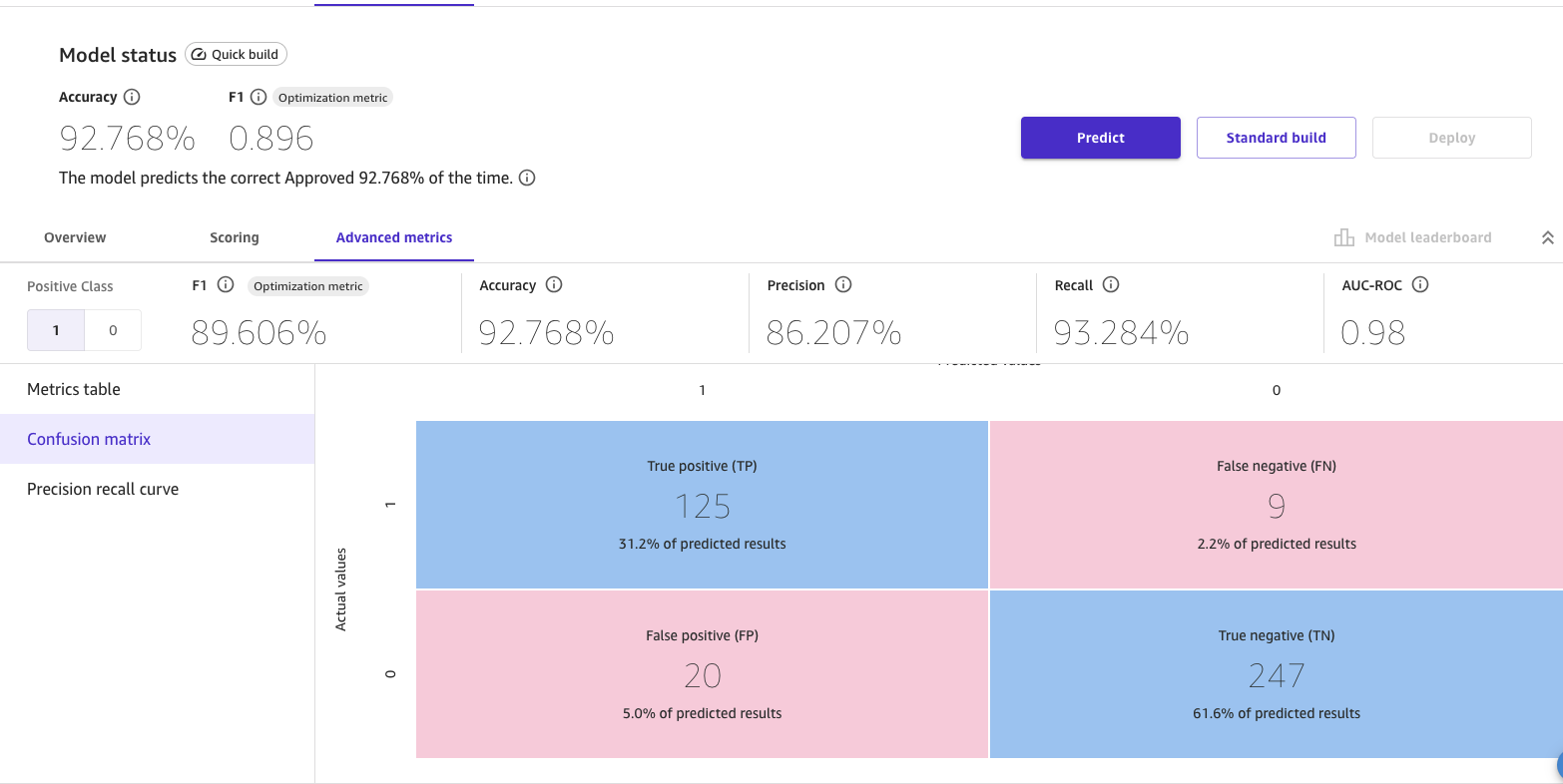
This gives a clearer view of how the model behaves:
- True Positives → correct approvals
- True Negatives → correct rejections
- False Positives → risky approvals
- False Negatives → missed good applicants
Feature Importance
Canvas also highlights which features matter most.
In this case:
- annual_income
- debt
have the strongest influence — which aligns with real-world loan decisions.
Step 7: Make Predictions
Canvas includes a Predict tab where you can test the model.
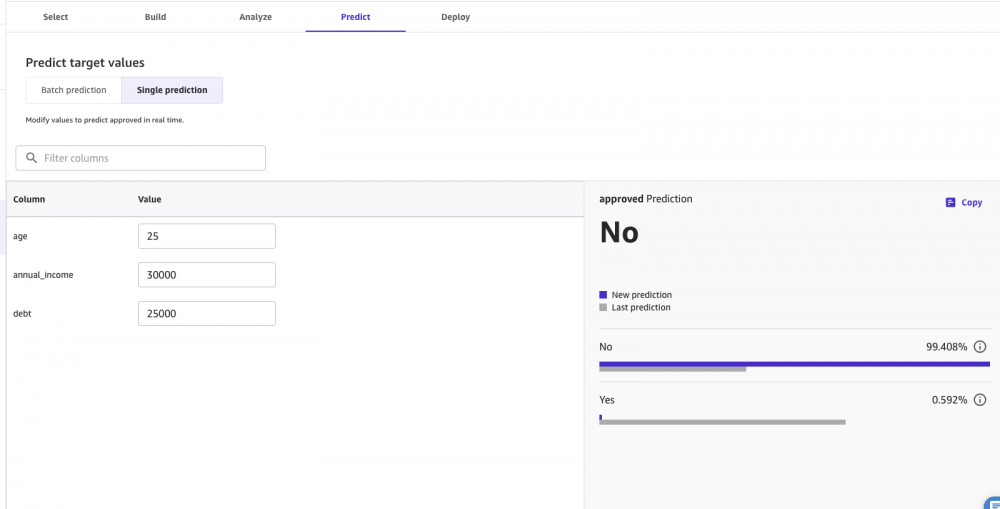
Single prediction
Enter one applicant’s details and get an instant result.
Batch prediction
Upload a CSV and get predictions for all rows at once.
What Canvas Handles Automatically
Normally, building a model requires multiple steps in code. Canvas simplifies this:
| Task | Canvas |
|---|---|
| Data split | Automatic |
| Algorithm selection | Automatic |
| Hyperparameter tuning | Automatic |
| Training | One click |
| Evaluation | Built-in |
| Prediction | UI-based |
Where This Fits in AWS Learning
Workflows like this are commonly referenced in certifications such as:
- AWS Certified Machine Learning – Specialty
- AWS Certified AI Practitioner
Not in terms of UI steps, but in understanding:
- How models are trained
- How metrics are interpreted
- How predictions are made
Final Thoughts
This was a simple experiment, but it shows how accessible machine learning has become.
You don’t need to write code to:
- Build a model
- Evaluate performance
- Make predictions
SageMaker Canvas handles the heavy lifting – you just need to understand what the results mean.
